

Linksys Router - How do I log in to the Linksys app?
The Linksys app allows you to change various settings such as the Wi-Fi name, password, parental controls, guest Wi-Fi, and more.
If you have a WiFi 7 router (droplet-shaped on top), please see article: Linksys Now - How do I login to the web interface. Please note, we do not have a Linksys app for WiFi 7.
To login, simply follow the steps in our handy step-by-step guide below.
- Download the Linksys app
a. iOS: Download the Linksys App from the App Store.
b. Android: Download the Linksys App from the Play Store.
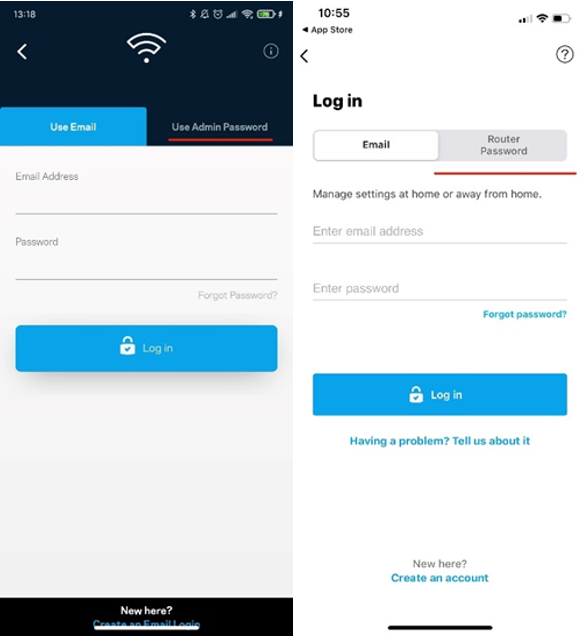
- Tap Manage Your Wi-Fi (iOS) or Log in (Android).
- Select ‘Use Router Password’
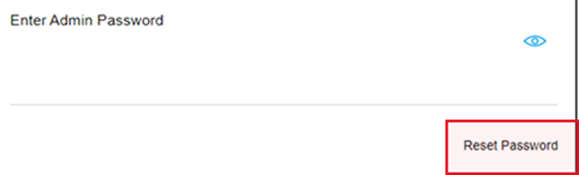
- Click ‘Reset Password’
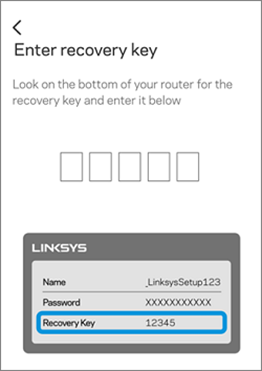
- Enter the 5-digit recovery key, which can be found on the label under the router, then click ‘Submit’.
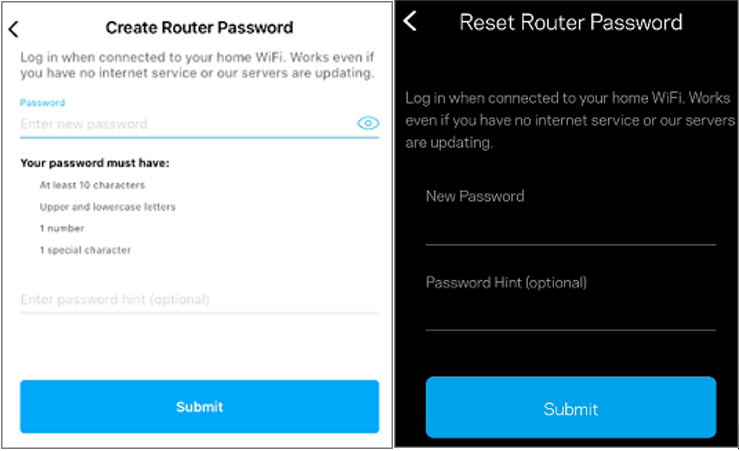
- Enter a new router password and hint (optional) then click ‘Reset’. The password is case-sensitive.
- Once logged in, you will be redirected to the dashboard. To see your options, tap the menu icon on the top left-hand side of the dashboard.

