
Parental Control Linksys - What can I do?
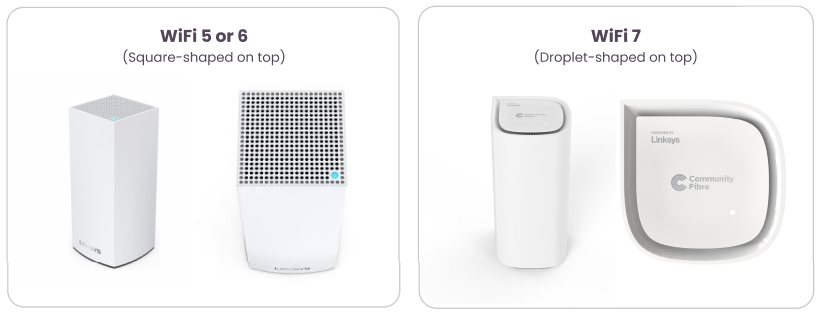
If your Linksys router is WiFi 6 (square-shaped on top) you can access Parental Control within the Linksys app. If you have a WiFi 7 router (droplet- shaped on top), Parental Control has been replaced with Instant-Safety. Details on enabling Instant Safety are further down the page.
Parental Control on WiFi 6 routers (square-shaped on top)
It features a range of functionalities to help manage and monitor internet usage:
- Block certain sites: Restrict access to specific websites, ensuring your child avoids inappropriate or distracting content.
- Turn on Safe Search: Enable Safe Search, which filters out explicit or harmful content from search engine results.
- Pause access for specific devices: Temporarily pause internet access for individual devices, allowing for breaks or focus time.
- Turn Wi-Fi off for specific devices: Disable Wi-Fi for certain devices entirely, providing greater control over screen time and internet usage.
These tools help create a safer and more controlled online environment for your family.
Instant-Safety on WiFi 7 routers (droplet-shaped on top)
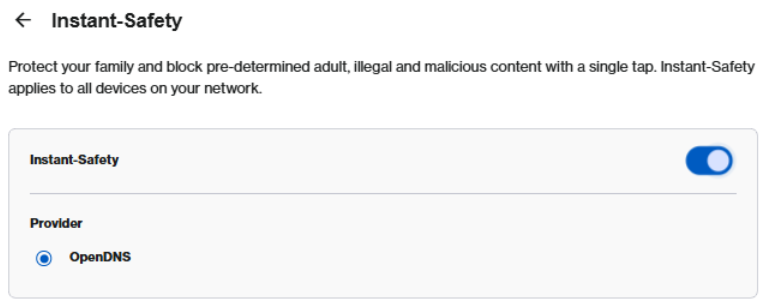
The Instant-Safety feature allows you to block inappropriate online content through a service provided by OpenDNS. This feature is not supported if your router is in bridge mode.
Enabling Instant-Safety
1. Open the Linksys Now dashboard. The router’s default IP address, https://192.168.1.1 also opens the dashboard. As does the QR code provided in the box the router was supplied in.
-
Click on Menu.
-
Click on Instant-Safety.
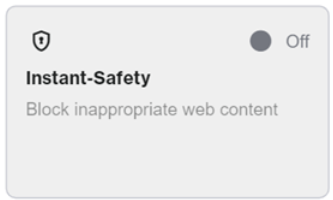
- To enable secure browsing, toggle the switch to the ON position and click Save. You will temporarily lose WiFi connection while the change is being applied.